
How to implement authentication in Next.js
Understanding authentication is crucial for protecting your application's data. This page will guide you through what React and Next.js features to use to implement auth.
Before starting, it helps to break down the process into three concepts:
- Authentication: Verifies if the user is who they say they are. It requires the user to prove their identity with something they have, such as a username and password.
- Session Management: Tracks the user's auth state across requests.
- Authorization: Decides what routes and data the user can access.
This diagram shows the authentication flow using React and Next.js features:
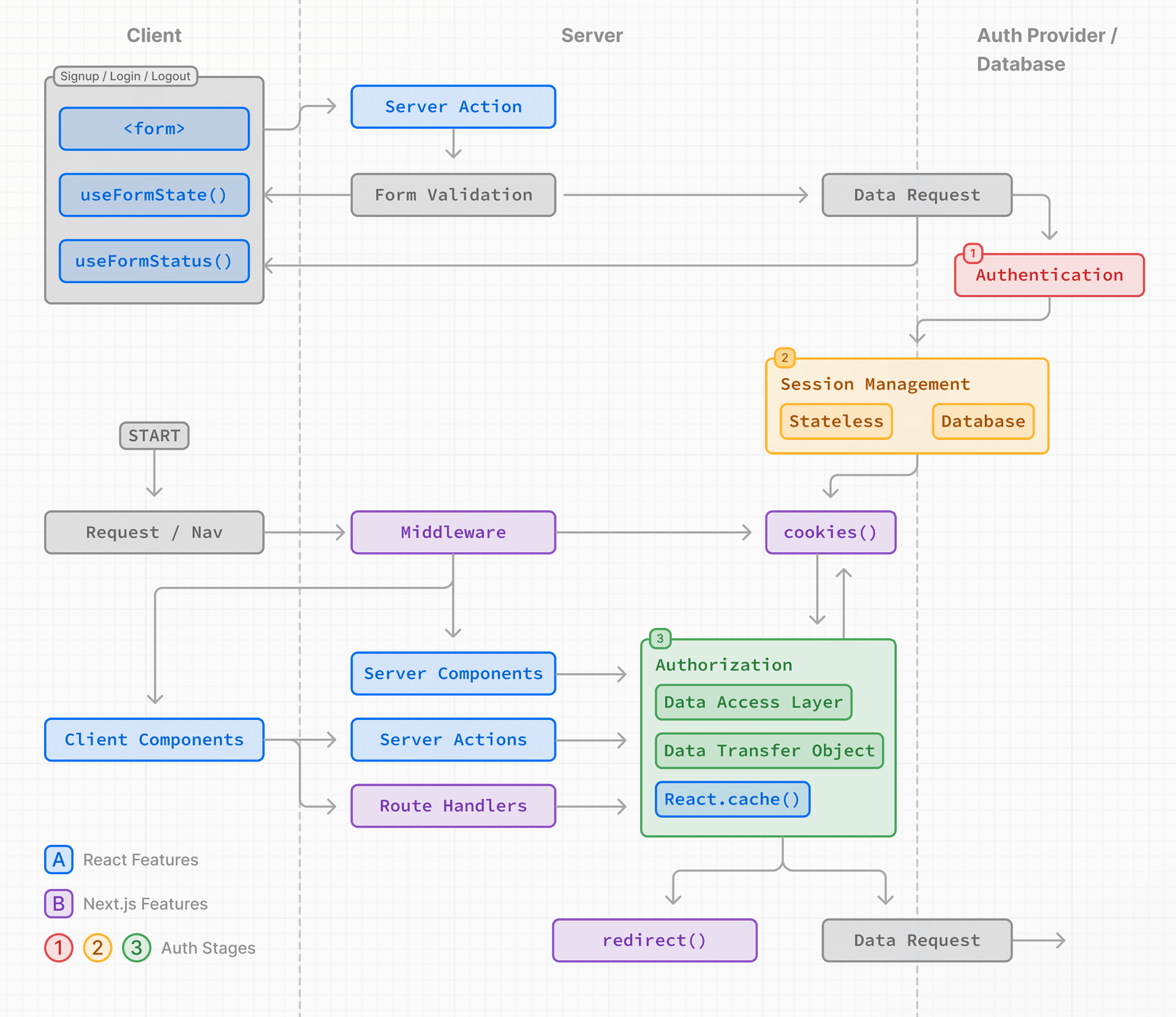
The examples on this page walk through basic username and password auth for educational purposes. While you can implement a custom auth solution, for increased security and simplicity, we recommend using an authentication library. These offer built-in solutions for authentication, session management, and authorization, as well as additional features such as social logins, multi-factor authentication, and role-based access control.
Authentication
Sign-up and login functionality
You can use the <form> element with React Hook Form and Zod to capture user credentials, validate form fields, and call your Authentication Provider's API.
Here are the steps to implement signup/login functionality:
1. Capture user credentials
To capture user credentials, create a form that uses React Hook Form with ShadcnUI components:
// src/features/auth/components/login-form.tsx
"use client";

import { useForm } from "react-hook-form";
import { zodResolver } from "@hookform/resolvers/zod";
import { signIn } from "next-auth/react";
import { z } from "zod";
import { Button } from "@/components/ui/button";
import { Input } from "@/components/ui/input";
import { PasswordInput } from "@/components/ui/password-input";
import {
  Form,
  FormControl,
  FormField,
  FormItem,
  FormLabel,
  FormMessage,
} from "@/components/ui/form";

export function LoginForm() {
  const form = useForm<LoginFormData>({
    resolver: zodResolver(loginSchema),
    defaultValues: { email: "", password: "" },
  });

  return (
    <Form {...form}>
      <form onSubmit={form.handleSubmit(onSubmit)}>
        <FormField
          control={form.control}
          name="email"
          render={({ field }) => (
            <FormItem>
              <FormLabel>{t("email")}</FormLabel>
              <FormControl>
                <Input {...field} type="email" />
              </FormControl>
              <FormMessage />
            </FormItem>
          )}
        />
        <FormField
          control={form.control}
          name="password"
          render={({ field }) => (
            <FormItem>
              <FormLabel>{t("password")}</FormLabel>
              <FormControl>
                <PasswordInput {...field} />
              </FormControl>
              <FormMessage />
            </FormItem>
          )}
        />
        <Button type="submit" disabled={formState.isLoading}>
          {t("submit")}
        </Button>
      </form>
    </Form>
  );
}
2. Validate form fields on the server
Use Zod schema to validate the form fields. Define a form schema with appropriate error messages using i18n:
// src/features/auth/components/login-form.tsx
const loginSchema = z.object({
  email: z.string().email(tValidation("email")),
  password: z.string().min(1, tValidation("required", { field: t("password") })),
});

type LoginFormData = z.infer<typeof loginSchema>;
To prevent unnecessary calls to your authentication provider's API, the form validation happens on the client first via zodResolver.
3. Create a user or check user credentials
After validating form fields, you can check if the user exists by calling NextAuth.js signIn:
// src/features/auth/components/login-form.tsx
async function onSubmit(data: LoginFormData) {
  formState.startSubmit();

  try {
    const result = await signIn("credentials", {
      email: data.email,
      password: data.password,
      redirect: false,
    });

    if (result?.error) {
      formState.setError(tErrors("invalidCredentials"));
    } else {
      router.push("/dashboard");
      router.refresh();
    }
  } catch {
    formState.setError(tErrors("unknownError"));
  } finally {
    formState.setLoading(false);
  }
}
After successfully verifying the user credentials, NextAuth.js automatically creates a session. Continue to the Session Management section to learn more.
Tips:
- Consider using an Auth Library like NextAuth.js to simplify the process.
- To improve the user experience, you may want to check for duplicate emails earlier in the registration flow.
Session Management
Session management ensures that the user's authenticated state is preserved across requests. It involves creating, storing, refreshing, and deleting sessions or tokens.
There are two types of sessions:
- Stateless: Session data (or a token) is stored in the browser's cookies. The cookie is sent with each request, allowing the session to be verified on the server. This method is simpler, but can be less secure if not implemented correctly.
- Database: Session data is stored in a database, with the user's browser only receiving the encrypted session ID. This method is more secure, but can be complex and use more server resources.
Good to know: We recommend using NextAuth.js which handles session management automatically.
Stateless Sessions
NextAuth.js uses JWT stored in cookies by default. To create and manage stateless sessions:
1. Generating a secret key
Generate a secret key to sign your session:
openssl rand -base64 32Store it in your environment variables file:
# .env.local
NEXTAUTH_SECRET=your_secret_key
NEXTAUTH_URL=http://localhost:3000
2. Encrypting and decrypting sessions
NextAuth.js automatically handles JWT encryption/decryption:
// src/core/lib/auth.ts
import NextAuth, { NextAuthOptions } from "next-auth";

export const authOptions: NextAuthOptions = {
  secret: process.env.NEXTAUTH_SECRET,
  session: {
    strategy: "jwt",
    maxAge: 7 * 24 * 60 * 60, // 7 days
  },
};
3. Setting cookies (recommended options)
NextAuth.js automatically sets secure cookies with httpOnly, secure, and sameSite options:
// src/core/lib/auth.ts
export const authOptions: NextAuthOptions = {
  cookies: {
    sessionToken: {
      name: "next-auth.session-token",
      options: {
        httpOnly: true,
        secure: process.env.NODE_ENV === "production",
        sameSite: "lax",
        path: "/",
      },
    },
  },
};
Updating (or refreshing) sessions
You can extend the session's expiration time using callbacks:
// src/core/lib/auth.ts
callbacks: {
  async jwt({ token, user }) {
    if (user) {
      token.id = user.id;
      token.role = user.role;
    }
    return token;
  },
  async session({ session, token }) {
    session.user.id = token.id as string;
    session.user.role = token.role as string;
    return session;
  },
},
Deleting the session
To delete the session, use NextAuth.js signOut:
// src/features/auth/components/logout-button.tsx
"use client";

import { signOut } from "next-auth/react";
import { Button } from "@/components/ui/button";
import { LogOut } from "lucide-react";

export function LogoutButton() {
  const [isLoading, setIsLoading] = useState(false);

  const handleLogout = async () => {
    setIsLoading(true);
    await signOut({ callbackUrl: "/login" });
  };

  return (
    <Button onClick={handleLogout} disabled={isLoading}>
      <LogOut className="mr-2 h-4 w-4" />
      {t("logout")}
    </Button>
  );
}
Database Sessions
To use database sessions instead of JWT, configure an adapter:
// src/core/lib/auth.ts
import { PrismaAdapter } from "@auth/prisma-adapter";
import { prisma } from "@/core/lib/prisma";

export const authOptions: NextAuthOptions = {
  adapter: PrismaAdapter(prisma),
  session: {
    strategy: "database",
  },
};
Authorization
Once a user is authenticated and a session is created, you can implement authorization to control what the user can access and do within your application.
There are two main types of authorization checks:
- Optimistic: Checks if the user is authorized to access a route or perform an action using the session data stored in the cookie. These checks are useful for quick operations, such as showing/hiding UI elements or redirecting users based on permissions or roles.
- Secure: Checks if the user is authorized to access a route or perform an action using the session data stored in the database. These checks are more secure and are used for operations that require access to sensitive data or actions.
For both cases, we recommend:
- Creating a Data Access Layer to centralize your authorization logic
- Using Data Transfer Objects (DTO) to only return the necessary data
- Optionally use Proxy to perform optimistic checks.
Optimistic checks with Proxy (Optional)
There are some cases where you may want to use Proxy and redirect users based on permissions:
- To perform optimistic checks. Since Proxy runs on every route, it's a good way to centralize redirect logic and pre-filter unauthorized users.
- To protect static routes that share data between users (e.g. content behind a paywall).
However, since Proxy runs on every route, including prefetched routes, it's important to only read the session from the cookie (optimistic checks), and avoid database checks to prevent performance issues.
// proxy.ts
import { NextRequest, NextResponse } from "next/server";
import { getToken } from "next-auth/jwt";

const protectedRoutes = ["/dashboard", "/settings"];
const authRoutes = ["/login", "/register", "/forgot-password"];

export default async function proxy(req: NextRequest) {
  const token = await getToken({ req });
  const { pathname } = req.nextUrl;

  // Redirect to login if not authenticated
  if (protectedRoutes.some((r) => pathname.startsWith(r)) && !token) {
    return NextResponse.redirect(new URL("/login", req.url));
  }

  // Redirect to dashboard if already authenticated
  if (authRoutes.includes(pathname) && token) {
    return NextResponse.redirect(new URL("/dashboard", req.url));
  }

  return NextResponse.next();
}

export const config = {
  matcher: ["/((?!api|_next/static|_next/image|favicon.ico).*)"],
};
While Proxy can be useful for initial checks, it should not be your only line of defense in protecting your data. The majority of security checks should be performed as close as possible to your data source, see Data Access Layer for more information.
Creating a Data Access Layer (DAL)
We recommend creating a DAL to centralize your data requests and authorization logic.
The DAL should include a function that verifies the user's session as they interact with your application. At the very least, the function should check if the session is valid, then redirect or return the user information needed to make further requests.
// src/core/lib/dal.ts
import "server-only";

import { cache } from "react";
import { getServerSession } from "next-auth";
import { redirect } from "next/navigation";
import { authOptions } from "./auth";

export const verifySession = cache(async () => {
  const session = await getServerSession(authOptions);

  if (!session?.user) {
    redirect("/login");
  }

  return session;
});

export const getUser = cache(async () => {
  const session = await verifySession();

  const user = await db.user.findUnique({
    where: { id: session.user.id },
    select: { id: true, name: true, email: true, role: true },
  });

  return user;
});
You can then invoke the verifySession() function in your Server Components:
// app/[locale]/(dashboard)/dashboard/page.tsx
import { verifySession } from "@/core/lib/dal";

export default async function DashboardPage() {
  const session = await verifySession();

  return (
    <div>
      <h1>Welcome, {session.user.name}</h1>
    </div>
  );
}
Tips:
- A DAL can be used to protect data fetched at request time. However, for static routes that share data between users, data will be fetched at build time and not at request time. Use Proxy to protect static routes.
- For secure checks, you can check if the session is valid by comparing the session ID with your database. Use React's cache function to avoid unnecessary duplicate requests to the database during a render pass.
Using Data Transfer Objects (DTO)
When retrieving data, it's recommended you return only the necessary data that will be used in your application, and not entire objects. For example, if you're fetching user data, you might only return the user's ID and name, rather than the entire user object which could contain passwords, phone numbers, etc.
However, if you have no control over the returned data structure, or are working in a team where you want to avoid whole objects being passed to the client, you can use strategies such as specifying what fields are safe to be exposed to the client.
// src/core/lib/dto.ts
import "server-only";
import { getUser } from "@/core/lib/dal";

function canSeeUsername(viewer: User) {
  return true;
}

function canSeePhoneNumber(viewer: User, team: string) {
  return viewer.isAdmin || team === viewer.team;
}

export async function getProfileDTO(slug: string) {
  const data = await db.user.findMany({
    where: { slug },
  });
  const user = data[0];

  const currentUser = await getUser(user.id);

  return {
    username: canSeeUsername(currentUser) ? user.username : null,
    phonenumber: canSeePhoneNumber(currentUser, user.team)
      ? user.phonenumber
      : null,
  };
}
By centralizing your data requests and authorization logic in a DAL and using DTOs, you can ensure that all data requests are secure and consistent, making it easier to maintain, audit, and debug as your application scales.
Good to know:
- There are a couple of different ways you can define a DTO, from using
toJSON(), to individual functions like the example above, or JS classes. Since these are JavaScript patterns and not a React or Next.js feature, we recommend doing some research to find the best pattern for your application.
Server Components
Auth check in Server Components are useful for role-based access. For example, to conditionally render components based on the user's role:
// app/[locale]/(dashboard)/dashboard/page.tsx
import { verifySession } from "@/core/lib/dal";

export default async function Dashboard() {
  const session = await verifySession();
  const userRole = session?.user?.role;

  if (userRole === "admin") {
    return <AdminDashboard />;
  } else if (userRole === "user") {
    return <UserDashboard />;
  } else {
    redirect("/login");
  }
}
In the example, we use the verifySession() function from our DAL to check for 'admin', 'user', and unauthorized roles. This pattern ensures that each user interacts only with components appropriate to their role.
Layouts and auth checks
Due to Partial Rendering, be cautious when doing checks in Layouts as these don't re-render on navigation, meaning the user session won't be checked on every route change.
Instead, you should do the checks close to your data source or the component that'll be conditionally rendered.
For example, consider a shared layout that fetches the user data and displays the user image in a nav. Instead of doing the auth check in the layout, you should fetch the user data (getUser()) in the layout and do the auth check in your DAL.
This guarantees that wherever getUser() is called within your application, the auth check is performed, and prevents developers forgetting to check the user is authorized to access the data.
Auth checks in page components
For example, in a dashboard page, you can verify the user session and fetch the user data:
// app/[locale]/(dashboard)/dashboard/page.tsx
import { verifySession } from "@/core/lib/dal";

export default async function DashboardPage() {
  const session = await verifySession();

  const user = await getUserData(session.userId);

  return (
    <div>
      <h1>Welcome, {user.name}</h1>
    </div>
  );
}
Auth checks in leaf components
You can also perform auth checks in leaf components that conditionally render UI elements based on user permissions. For example, a component that displays admin-only actions:
// src/features/admin/components/admin-actions.tsx
import { verifySession } from "@/core/lib/dal";
import { Button } from "@/components/ui/button";

export default async function AdminActions() {
  const session = await verifySession();
  const userRole = session?.user?.role;

  if (userRole !== "admin") {
    return null;
  }

  return (
    <div className="flex gap-2">
      <Button variant="destructive">Delete User</Button>
      <Button>Edit Settings</Button>
    </div>
  );
}
This pattern allows you to show or hide UI elements based on user permissions while ensuring the auth check happens at render time in each component.
Good to know:
- A common pattern in SPAs is to
return nullin a layout or a top-level component if a user is not authorized. This pattern is not recommended since Next.js applications have multiple entry points, which will not prevent nested route segments and Server Actions from being accessed.- Ensure that any Server Actions called from these components also perform their own authorization checks, as client-side UI restrictions alone are not sufficient for security.
Server Actions
Treat Server Actions with the same security considerations as public-facing API endpoints, and verify if the user is allowed to perform a mutation.
In the example below, we check the user's role before allowing the action to proceed:
// src/features/admin/actions/admin-actions.ts
"use server";
import { verifySession } from "@/core/lib/dal";

export async function deleteUser(formData: FormData) {
  const session = await verifySession();
  const userRole = session?.user?.role;

  if (userRole !== "admin") {
    return { error: "Unauthorized" };
  }

  // Proceed with the action for authorized users
  const userId = formData.get("userId");
  await db.user.delete({ where: { id: userId } });

  return { success: true };
}
Route Handlers
Treat Route Handlers with the same security considerations as public-facing API endpoints, and verify if the user is allowed to access the Route Handler.
For example:
// app/api/admin/users/route.ts
import { verifySession } from "@/core/lib/dal";

export async function GET() {
  const session = await verifySession();

  if (!session) {
    return new Response(null, { status: 401 });
  }

  if (session.user.role !== "admin") {
    return new Response(null, { status: 403 });
  }

  const users = await db.user.findMany();
  return Response.json(users);
}
The example above demonstrates a Route Handler with a two-tier security check. It first checks for an active session, and then verifies if the logged-in user is an 'admin'.
Context Providers
Using context providers for auth works due to interleaving. However, React context is not supported in Server Components, making them only applicable to Client Components.
This works, but any child Server Components will be rendered on the server first, and will not have access to the context provider's session data:
// app/[locale]/layout.tsx
import { SessionProvider } from "next-auth/react";

export default function RootLayout({ children }) {
  return (
    <html lang="en">
      <body>
        <SessionProvider>{children}</SessionProvider>
      </body>
    </html>
  );
}
// src/features/auth/components/user-button.tsx
"use client";
import { useSession } from "next-auth/react";
export function UserButton() {
const { data: session, status } = useSession();
if (status === "loading") {
return <Skeleton className="h-8 w-8 rounded-full" />;
}
if (!session) {
return <Link href="/login">Sign In</Link>;
}
return <Avatar src={session.user.image} alt={session.user.name} />;
}If session data is needed in Client Components (e.g. for client-side data fetching), use React's taintUniqueValue API to prevent sensitive session data from being exposed to the client.